Media Library File Size

Media Library File Size

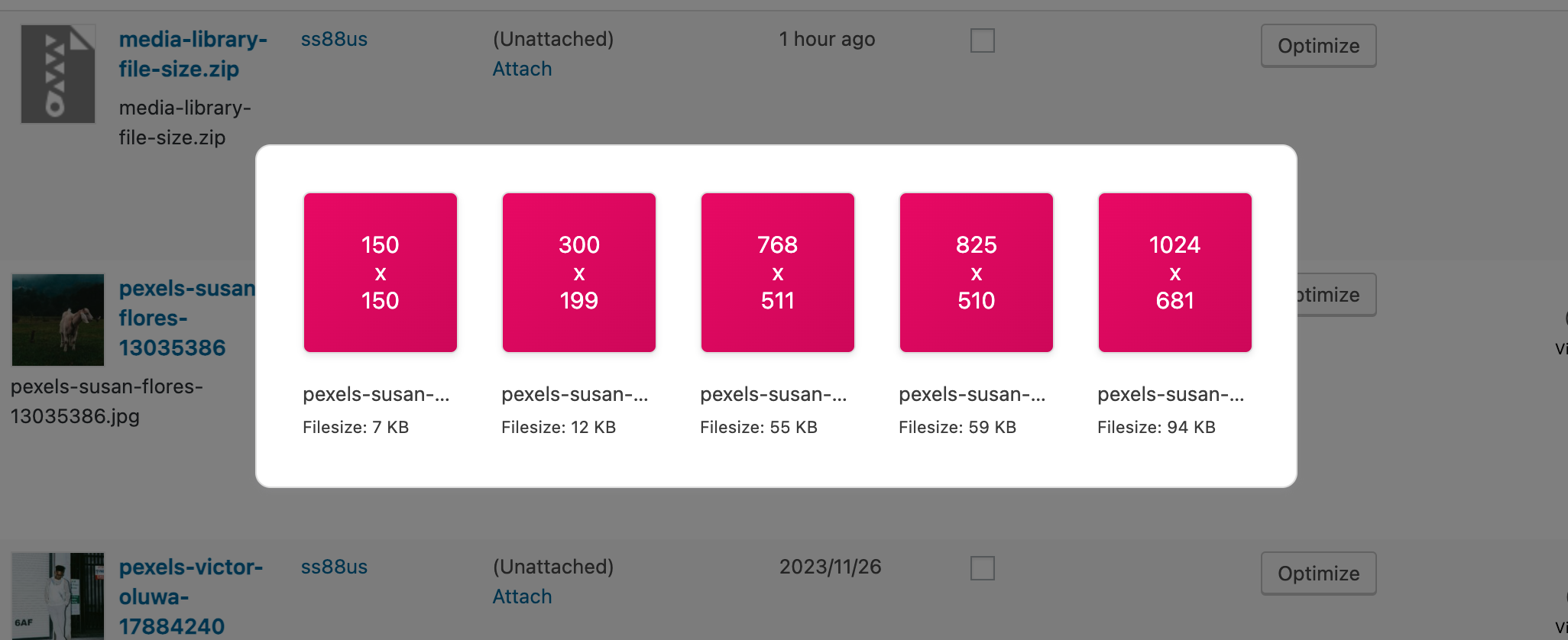
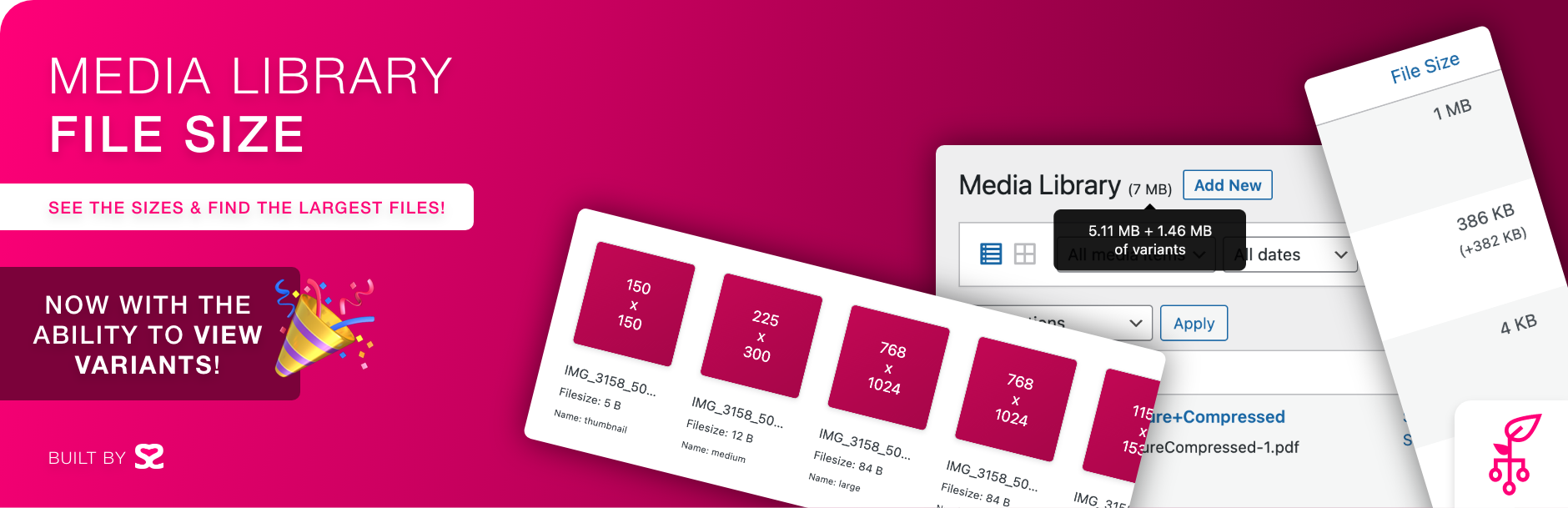
Displays the Media Library file sizes, including collective variants, and adds the ability to view/download each variant image!

  • Almost active
    This plugin was not updated the last 119 days ago.
  • This plugin is tested with the last major release of WordPress
    Content for list item
  • Compatible with the latest major PHP release
    This plugin requieres PHP 5.6 or higher. The latest stable PHP 8.5.0 was released on 20 November 2025
  • No information about vulnerabilities and unfixed security issues is available.
    Content for list item

Ratings

4

Active installs

5K

Total Downloads

34K

Support Threads

0

Last updated

11 August 2025

Added

09 March 2023

Versions

98.01%1.99%
  • Version 1.6
  • Version other

Screenshots

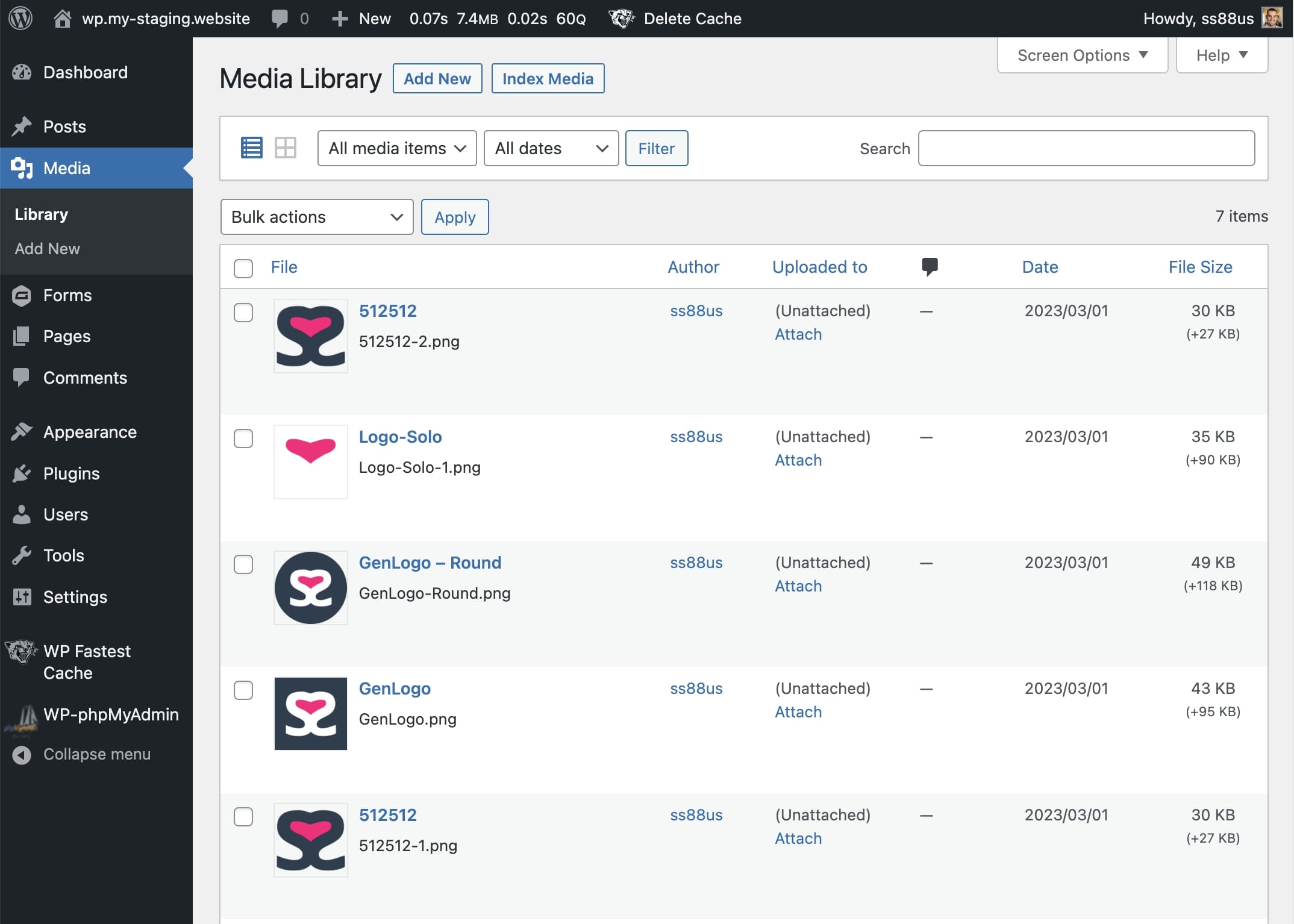
The Media Library view with the new File Size column and 'Index Media' button.
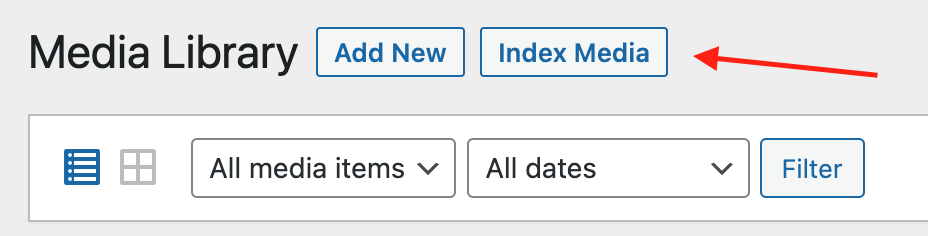
Pressing this button indexes your Media Library file sizes.

About Media Library File Size

FAQ

First try to index the Media Library by pressing the button ‘Index Media’ (when viewing the Media Library in list view mode). If this fails, it usually means that the file does not exist locally on the server.

The most common reason is because the file has been offloaded onto a CDN.

Make sure you are looking at your Media Library, and you are in List view. Grid mode does not work with this plugin.

This is a collective size of your thumbnails (and other sized images).

Make sure you are looking at your Media Library, and you are in List view. Grid mode does not work with this plugin.

This is a collective size of your thumbnails (and other sized images).

This is a collective size of your thumbnails (and other sized images).

Changelog

1.6.7

1.6.6

1.6.5

1.6.4

1.6.3

1.6.2

1.6.1

1.6

1.5.1

1.5

1.4

1.3

1.2

1.1

1.0

How to install Media Library File Size

Use the automatic installer via WordPress or download the plugin and:

  1. Upload the plugin files to the /wp-content/plugins/media-library-file-size directory.
  2. Activate the plugin through the ‘Plugins’ screen in WordPress.
  3. Navigate to the Media Library and click the Index Media button.